Studio User Guide
Overview
Framework-M Studio is a visual development environment for creating and managing DocTypes.
Starting Studio
# Start Studio server
uv run m studio

# Or with a specific port
uv run m studio --port 9999
Then open http://localhost:9999/studio in your browser.
秉
 Framework M Studio Dashboard - Visual metadata management at a glance.
秉
Framework M Studio Dashboard - Visual metadata management at a glance.
秉
Creating a DocType
- Navigate to DocTypes - Click "DocTypes" in the sidebar
- Click "Create" - Opens the DocType editor
- Enter Name - Use PascalCase (e.g.,
SalesOrder) - Add Fields - Click "Add Field" and configure each field
- Save - Click "Save" to generate the Python file
秉
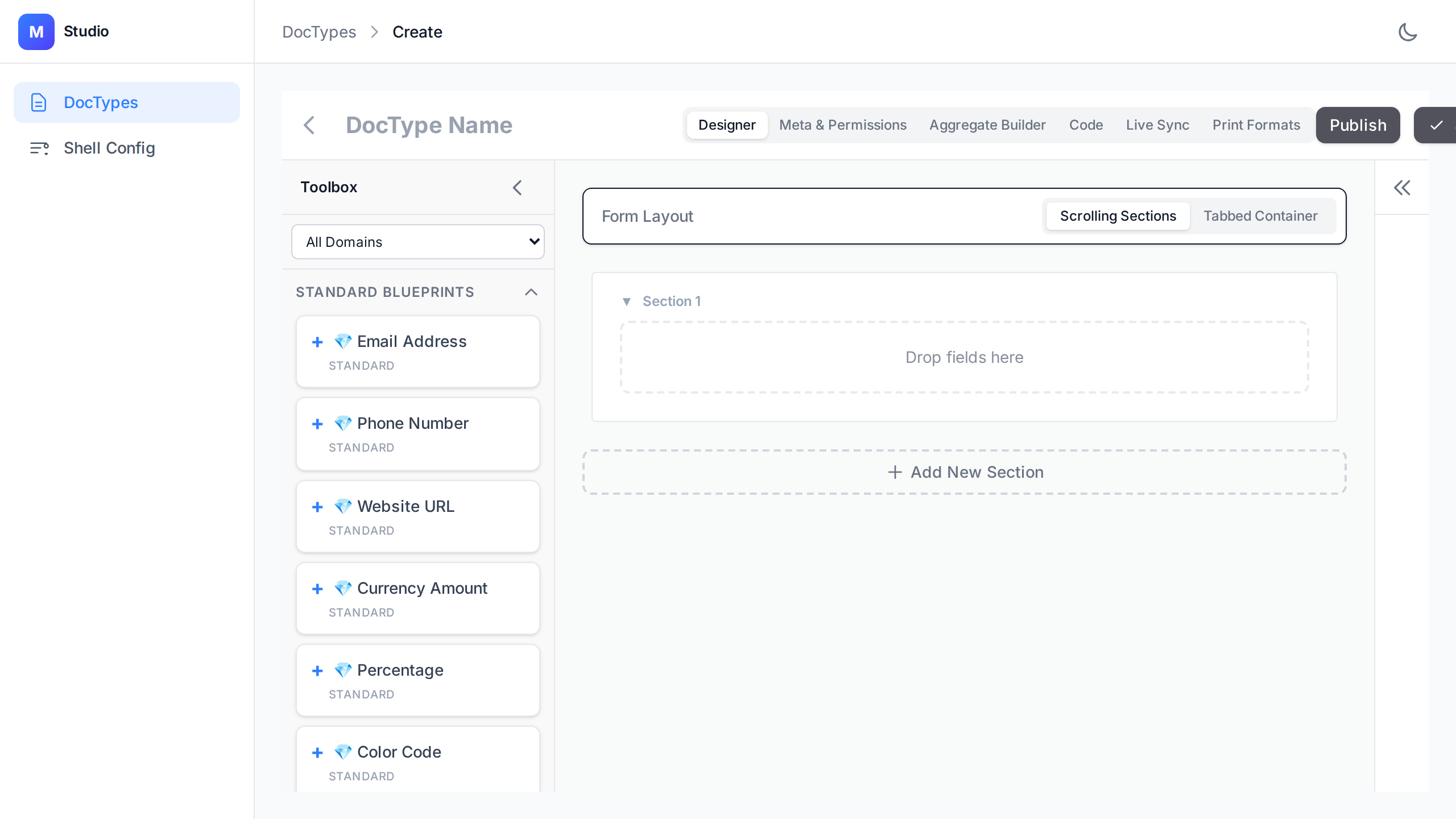 The Studio Designer - A visual canvas for building complex DocType layouts and rules.
秉
The Studio Designer - A visual canvas for building complex DocType layouts and rules.
秉
Adding Fields
Each field has:
- Name - Python identifier (snake_case)
- Type - Select from: Text, Integer, Float, Boolean, Date, etc.
- Required - Whether the field is mandatory
- Default - Optional default value
- Validators - Min/max length, pattern, min/max value
Configuring Permissions
Permissions are defined in the DocType's Meta class:
- Enable in the Properties panel
- Set
is_submittable = Truefor workflow-enabled docs
Using Git Mode
Viewing Status:
- Click the Git icon in the sidebar
- See current branch, modified files, and commit history
Committing Changes:
- Make changes to DocTypes
- Open Git panel
- Enter commit message
- Click "Commit"
Pushing to Remote:
- Commit your changes first
- Click "Push" to upload to GitHub
Designer Capabilities
The Designer tab provides a drag-and-drop canvas for building your form layout.
- Properties Panel: Click any field to edit its UI metadata (labels, icons, widget choices, and chip modes).
- Nested Sections: Organize fields using Tabs and Sections.
Migration Verification (Live Sync)
Switch to the Migration tab to perform a dry-run sync against your actual database.
- Click "Verify Schema": Compares your local Blueprint with the DB state.
- Review Diffs: The engine will flag Safe, Warning, or Breaking changes.
- ZDM Support: Breaking changes include links to Zero-Downtime Migration (ZDM) guides.
Print Formats
The Print tab (Beta) allows managing metadata for document printing. This sets the foundation for Jinja/React-based print templates.
Sandbox Mode
Test DocTypes without saving:
- Open a DocType
- Switch to "Sandbox" tab
- Use auto-generated mock data
- Test CRUD operations
- Verify validation rules
Controller Hooks
Available lifecycle hooks:
validate- Before save validationbefore_save- Pre-persistence logicafter_save- Post-save side effectsbefore_delete- Pre-delete cleanup
Edit in the "Controller" tab.